GymTracker Customer Help

Find the exact flow your user is stuck on.

This hub turns the generated customer-help guides into one searchable screen with screenshots, plain-language steps, and direct links for sharing support answers.

Support-Ready Articles

All content stays static. No Pages Functions required.

No guides matched that search. Try a simpler phrase like PT, billing, template, or export.

GymTracker Help

Signing Up To GymTracker PT

Create your account, confirm your email, and enable PT mode so you can manage billing, branding, and client exports.

PTAccountBilling
  • Have access to the email inbox you want to use for your PT account.
  • Use the PT mode switch in the menu before opening PT Profile.

After your email is confirmed, sign in, open PT Profile, and enable your PT workspace if it is not already active.

Step By Step

4 screens

Step 1

Switch to PT mode and open PT Profile

Open the menu, switch from Personal to PT, and choose PT Profile to start the PT setup flow.

Switch to PT mode and open PT Profile

Step 2

Open Account & Plan

Choose Open Account & Plan to reach the sign-in and Create Account form.

Open Account & Plan

Step 3

Create your account

Enter your email address and password, then tap Create Account. GymTracker will ask you to confirm your email before your first full sign-in.

Create your account

Step 4

Enable your PT workspace

After you verify your email and sign in, open PT Profile and tap Enable PT Workspace to unlock PT billing, branding, and client-export tools.

Enable your PT workspace

Troubleshooting

Common blockers

  • If you do not see PT Profile, open the menu and switch from Personal to PT.
  • If the account already exists, use Sign In instead of Create Account.
Generated from the live staging build at https://gymtracker-ecz.pages.dev using the customer-help Playwright workflow.

GymTracker Help

Upgrading To GymTracker Pro

Sign in, open Account & Plan, and start the secure GymTracker Pro checkout.

AccountBilling
  • Use the email address already linked to your GymTracker account.
  • Keep the app open until the secure checkout page loads.

After checkout, return to GymTracker and refresh your account panel if the Pro label does not appear straight away.

Step By Step

3 screens

Step 1

Sign in and open Account & Plan

Sign in with your GymTracker account and open Account & Plan so you can see the current plan and upgrade option.

Sign in and open Account & Plan

Step 2

Choose Upgrade to Pro

Tap Upgrade to Pro to open the secure checkout for your GymTracker Pro purchase.

Choose Upgrade to Pro

Step 3

Finish checkout securely

Complete the secure checkout, then return to GymTracker. If the Pro label does not update straight away, open Account & Plan and tap Refresh Account.

Troubleshooting

Common blockers

  • If the Upgrade to Pro button is missing, sign in first.
Generated from the live staging build at https://gymtracker-ecz.pages.dev using the customer-help Playwright workflow.

GymTracker Help

Signing In And Switching Between Personal And PT Mode

Sign in from Account & Plan, then use the menu switch to move between Personal and PT mode.

PTAccountBilling
  • Use the same account email and password you created earlier.

Personal mode keeps the standard app view, while PT mode gives you PT Profile, PT billing, branding, and branded-export tools.

Step By Step

3 screens

Step 1

Sign in from Account & Plan

Open Account & Plan, enter your email address and password, and sign in to your GymTracker account.

Sign in from Account & Plan

Step 2

Switch from Personal to PT mode

Open the menu and use the Personal or PT switch at the bottom to move into PT mode.

Switch from Personal to PT mode

Step 3

Switch back to Personal mode

Use the same menu switch whenever you want to return to the standard Personal GymTracker view.

Switch back to Personal mode

Troubleshooting

Common blockers

  • If PT mode looks locked, open PT Profile and check whether the account has PT workspace enabled.
Generated from the live staging build at https://gymtracker-ecz.pages.dev using the customer-help Playwright workflow.

GymTracker Help

Managing Your GymTracker PT Profile

Open PT Profile to update your brand, logo, public PT details, and the client preview your customers will see.

PTAccountBilling
  • Sign in with your PT account and switch to PT mode.
  • Keep your logo and profile image files ready if you want to upload them.

After saving, your PT workspace preview updates and future branded imports use the saved PT profile details from the server.

Step By Step

4 screens

Step 1

Open PT Profile

In PT mode, open PT Profile to manage billing, branding, public PT details, and client exports from one place.

Open PT Profile

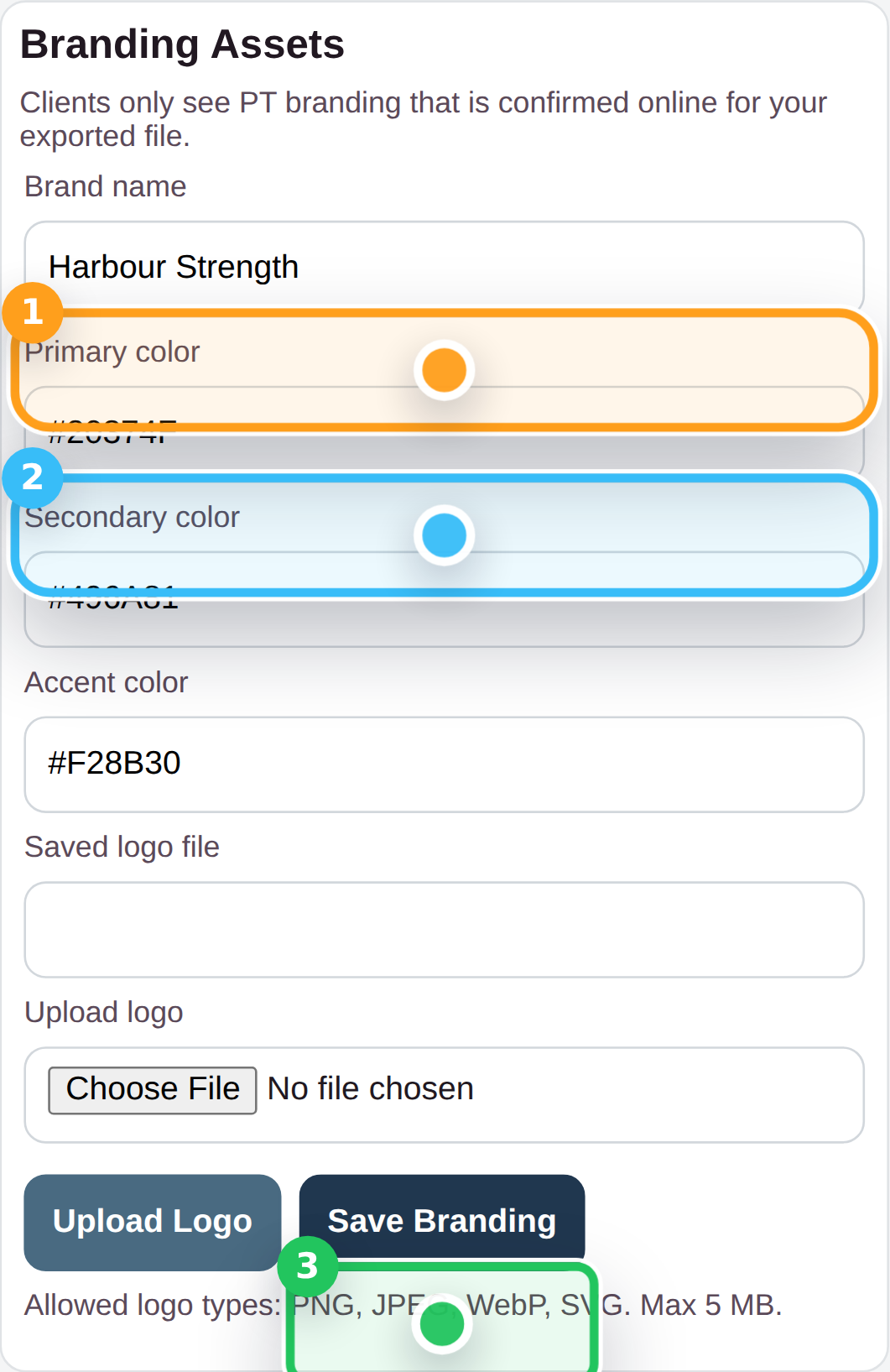
Step 2

Save your brand and logo

Update your brand name and colours, upload your logo, then tap Save Branding to refresh the PT workspace preview.

Save your brand and logo

Step 3

Save the public PT details your clients will see

Fill in your PT details, choose which contact fields to show, upload a profile image if you want one, then tap Save Profile.

Save the public PT details your clients will see

Step 4

Check the client preview

The Client PT Details Preview shows the version of your PT profile that clients will see after they import and verify your branded data file.

Check the client preview

Troubleshooting

Common blockers

  • If the fields are disabled, your PT billing status is not active yet.
Generated from the live staging build at https://gymtracker-ecz.pages.dev using the customer-help Playwright workflow.

GymTracker Help

Recording Live Workouts Using GymTracker

Start a live session, add an exercise, record your set, and complete the workout when you are done.

AccountDataWorkout
  • You can do this signed out or signed in.
  • Start Fresh if you want a blank workout session.

Your completed session is stored in the current GymTracker data file and can also be saved as a reusable template.

Step By Step

3 screens

Step 1

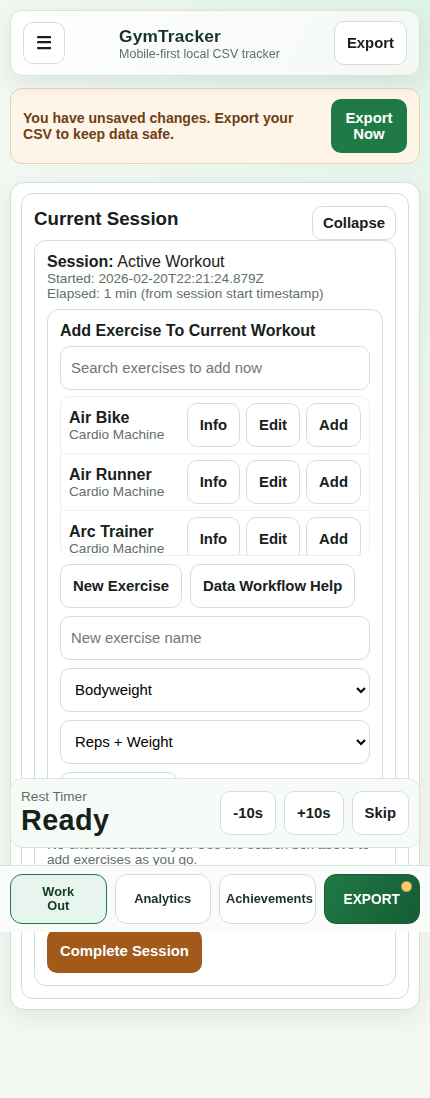
Open the Workout tab

Open Workout and choose Start Session Now when you are ready to record a live session.

Open the Workout tab

Step 2

Add your exercise and record your set

Search for an exercise, enter the reps and weight for your set, and add it to the live session.

Add your exercise and record your set

Step 3

Complete the workout

When the session is done, choose Complete Session to see the summary and save it into your GymTracker history.

Complete the workout

Troubleshooting

Common blockers

  • If the workout search does not open, make sure you are on the Workout tab before adding an exercise.
Generated from the live staging build at https://gymtracker-ecz.pages.dev using the customer-help Playwright workflow.

GymTracker Help

Creating Workout Templates Using GymTracker

Use the template builder to name a workout, add exercises, save it, and start a live session from the saved template.

AccountWorkout
  • Start Fresh if you want a clean template list.

Saved templates appear in the workout picker so you can reuse them whenever you want to start a new session.

Step By Step

3 screens

Step 1

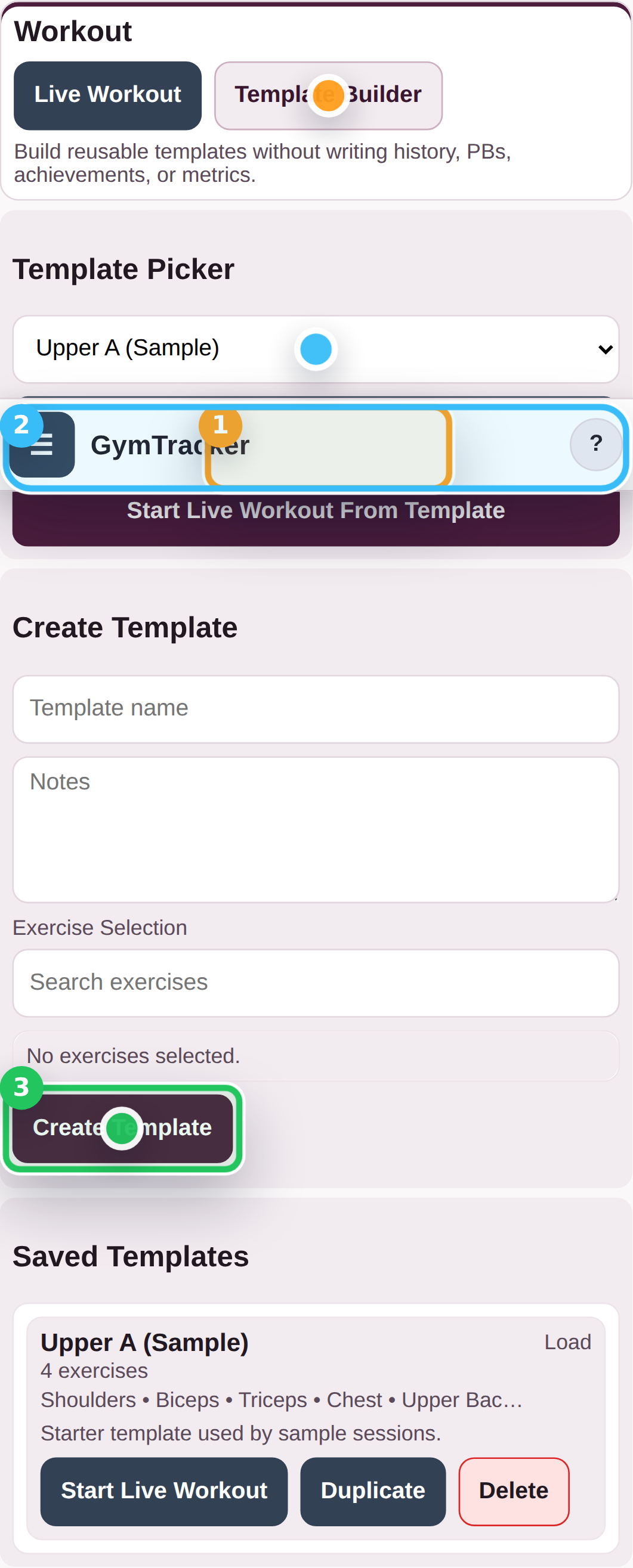
Build your template

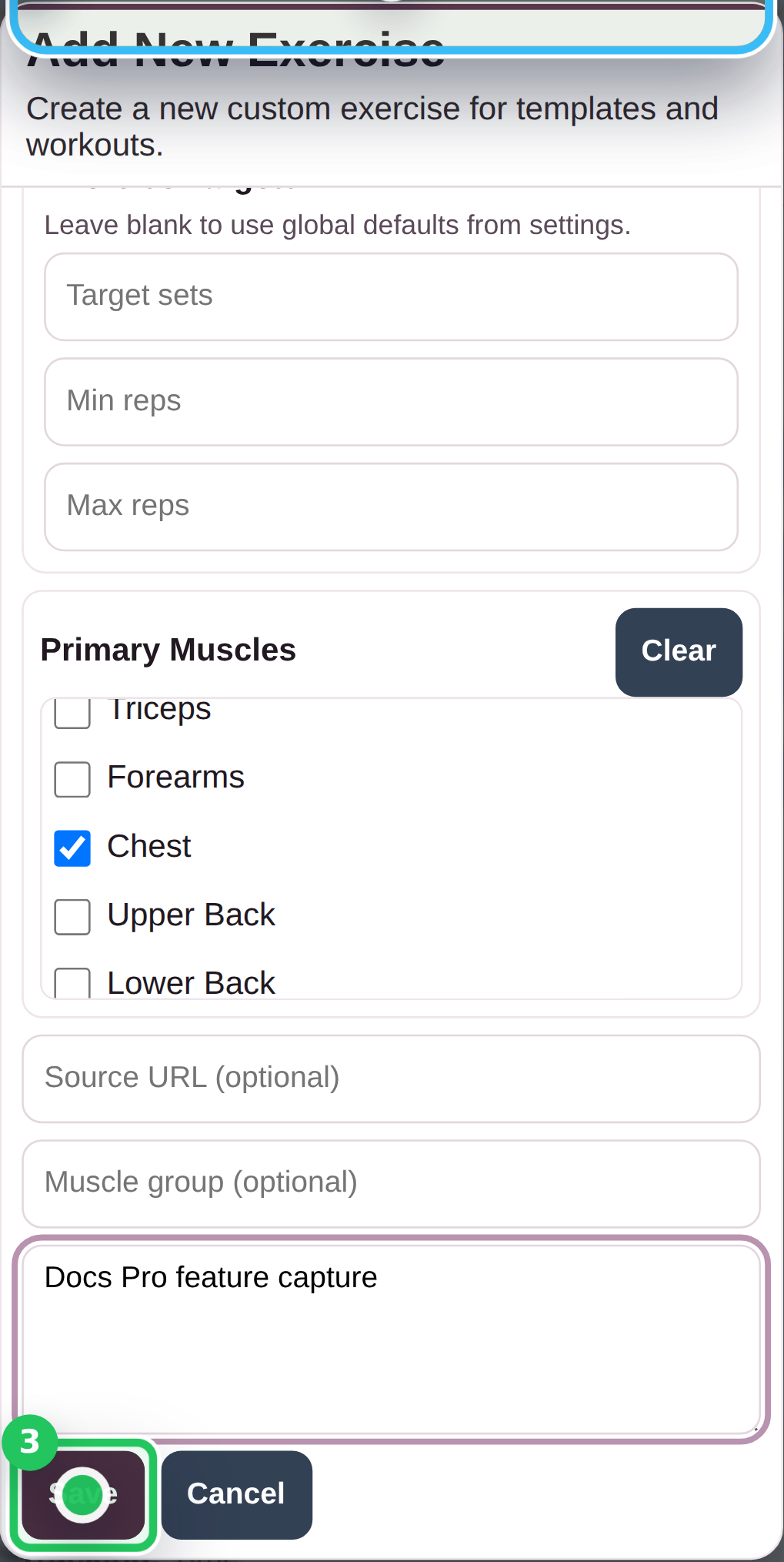
Switch Workout into template mode, name the template, and add the exercises you want in the plan.

Build your template

Step 2

Save the template

Tap Create Template to save it, then pick it from the template list whenever you want to use it again.

Save the template

Step 3

Start a live workout from the template

Choose the saved template and tap Start Live to turn the plan into a live workout session.

Start a live workout from the template

Troubleshooting

Common blockers

  • If you cannot save a template on a free account, you may have reached the current free template limit.
Generated from the live staging build at https://gymtracker-ecz.pages.dev using the customer-help Playwright workflow.

GymTracker Help

Exporting Your Data File Using GymTracker

Open Data, choose Export Data File, confirm the filename, and save your GymTracker data file (.csv).

DataWorkout
  • Make sure the current workout history or templates you want to keep are already in the app.

The saved GymTracker data file can be backed up, moved to another device, or imported back into GymTracker later.

Step By Step

3 screens

Step 1

Open Data

Open Data to find import, export, and backup actions for your current GymTracker data file.

Open Data

Step 2

Confirm the export filename

Choose Export Data File, confirm the filename, and save the GymTracker data file (.csv) to your device.

Confirm the export filename

Step 3

Keep the file somewhere safe

You can use the exported file as your backup, move it to another device, or import it back into GymTracker later.

Troubleshooting

Common blockers

  • If your browser blocks the download, allow downloads and try again.
Generated from the live staging build at https://gymtracker-ecz.pages.dev using the customer-help Playwright workflow.

GymTracker Help

Importing An Existing GymTracker Data File

Choose your GymTracker data file (.csv), review the import preview, and apply it to the app.

DataWorkout
  • Keep a backup copy of your current data file if you do not want to replace it.

Your imported workout history, templates, and settings load into the app and stay local unless you explicitly export again.

Step By Step

3 screens

Step 1

Choose the GymTracker data file

Open Data, choose your GymTracker data file (.csv), and continue to the import preview.

Choose the GymTracker data file

Step 2

Review the import preview

Check the file summary before you apply the import so you know what will be loaded into the app.

Review the import preview

Step 3

Apply the import

Apply the import to load the workout history, templates, and settings from the file into GymTracker.

Apply the import

Troubleshooting

Common blockers

  • If you already have unsaved work open, the app may ask you to confirm before previewing the import.
Generated from the live staging build at https://gymtracker-ecz.pages.dev using the customer-help Playwright workflow.

GymTracker Help

Exporting Your Branded Data File Using GymTrackerPT

Open PT Profile and export a branded GymTracker data file (.csv) so your clients get your verified PT branding on import.

PTAccountBilling
  • Sign in with a PT account that has active PT billing.
  • Make sure the workout data you want to share is already in the app.

Your branded file can be sent to a client. When they import it, GymTracker verifies your PT entitlement before applying your branding.

Step By Step

3 screens

Step 1

Open PT Profile

In PT mode, sign in and open PT Profile to access branded exports for your clients.

Open PT Profile

Step 2

Choose Export Branded CSV

Use Export Branded CSV when PT billing is active and you want the file to carry your verified PT branding.

Choose Export Branded CSV

Step 3

Send the branded file to your client

Save the branded GymTracker data file (.csv) and send it to your client. GymTracker will verify your PT branding when they import it.

Troubleshooting

Common blockers

  • If Export Branded CSV is unavailable or falls back to a standard export, refresh PT Profile and check your subscription status.
Generated from the live staging build at https://gymtracker-ecz.pages.dev using the customer-help Playwright workflow.

GymTracker Help

How Your Clients Use Your Branded GymTrackerPT Data File

Clients can import your branded GymTracker data file without creating an account and immediately see your verified PT branding.

PTAccountData
  • Send your client the branded GymTracker data file you exported from PT Profile.

The client keeps using the same CSV format, and GymTracker only applies your PT branding when the file entitlement verifies successfully.

Step By Step

3 screens

Step 1

Import the branded file

Open Data, choose the branded GymTracker data file (.csv), and continue to the import preview.

Import the branded file

Step 2

Check the PT branding preview

The preview shows the PT branding and public PT details that GymTracker verified from the file entitlement.

Check the PT branding preview

Step 3

Use the branded PT session

After import, the PT branding applies and PT Details becomes available in the menu for the current branded session.

Use the branded PT session

Troubleshooting

Common blockers

  • If the client does not see PT branding, ask them to re-import the latest branded file you exported.
Generated from the live staging build at https://gymtracker-ecz.pages.dev using the customer-help Playwright workflow.

GymTracker Help

Managing PT Billing

Open PT Profile to start PT billing or manage it when billing is already linked to your account.

PTAccountBilling
  • Switch to PT mode before opening PT Profile.

PT billing controls whether branded exports and verified PT branding are active for your clients.

Step By Step

3 screens

Step 1

Open PT Billing

In PT mode, open PT Profile to see the current PT billing status and the billing actions available for the account.

Open PT Billing

Step 2

Start PT billing

Tap Start PT Subscription to open the secure billing checkout. If billing is already linked later, the same card gives you Manage Billing instead.

Start PT billing

Step 3

Finish the secure checkout

Complete the secure billing checkout and return to GymTracker. Refresh PT Profile if you want to confirm the updated status.

Troubleshooting

Common blockers

  • If Manage Billing is disabled, start PT billing first so the account can be linked to billing.
Generated from the live staging build at https://gymtracker-ecz.pages.dev using the customer-help Playwright workflow.

GymTracker Help

Viewing PT Details After Importing A Branded File

After a branded import is verified, open PT Details to see the PT profile your coach chose to share with you.

PTAccountData
  • Import a branded GymTrackerPT data file first.

PT Details stays available only while you are using the verified branded session from that imported data file.

Step By Step

2 screens

Step 1

Open PT Details after a branded import

Once the branded import finishes, open PT Details from the menu to see the PT contact details and profile information shared with you.

Open PT Details after a branded import

Step 2

Use the trusted PT profile information

GymTracker shows the PT details that were verified from the server, not untrusted details copied from the file itself.

Use the trusted PT profile information

Troubleshooting

Common blockers

  • If PT Details is missing, the imported file may not include a valid current PT entitlement.